Soft, Squishy Cheeks
This page explains how to add bone weights to the cheeks to make it soft and squishy.
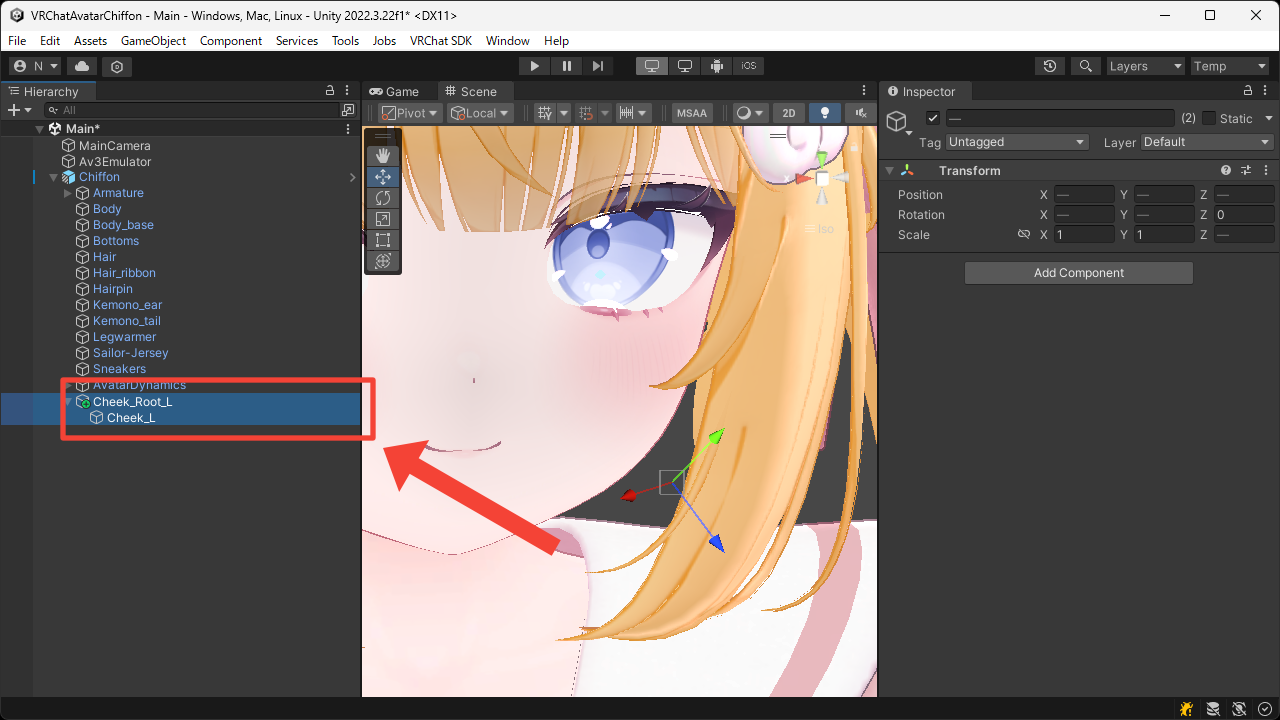
- Create nested empty Game Objects under the avatar root.
Place the parent Game Object inside the face, and the child one at the tip of the cheek.
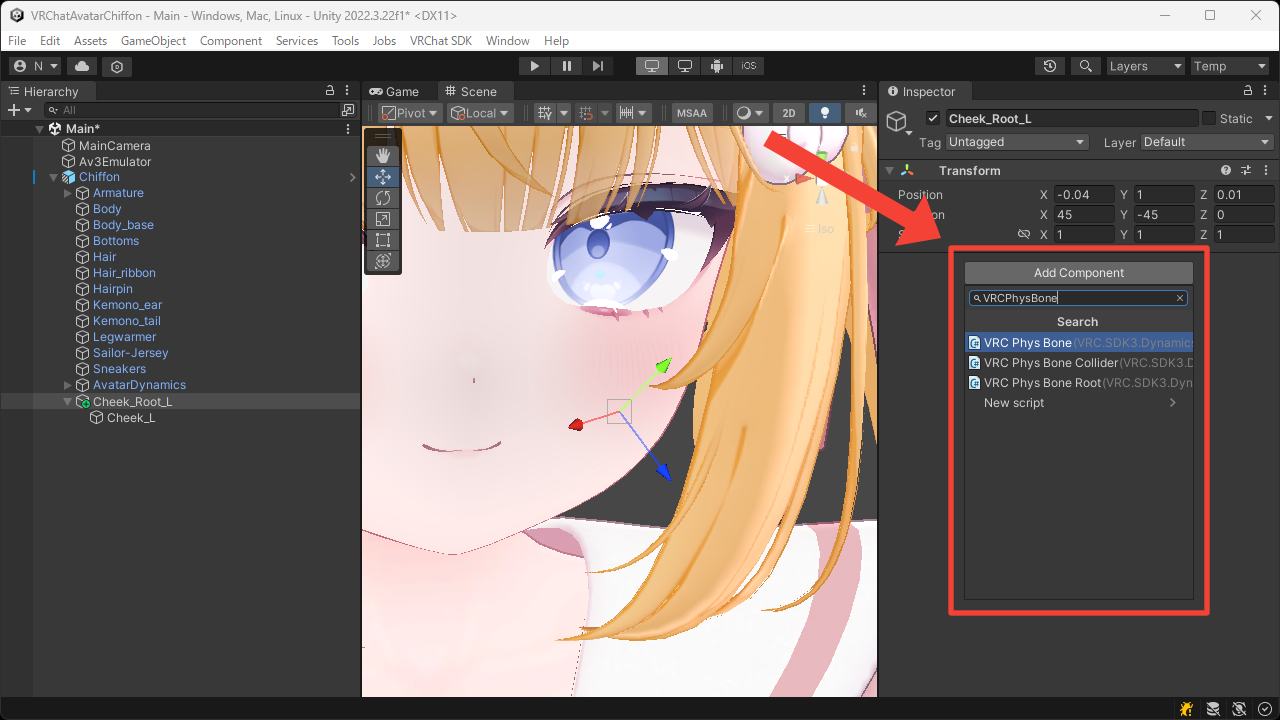
- Add the
VRC Phys Bonecomponent to the parent Game Object.
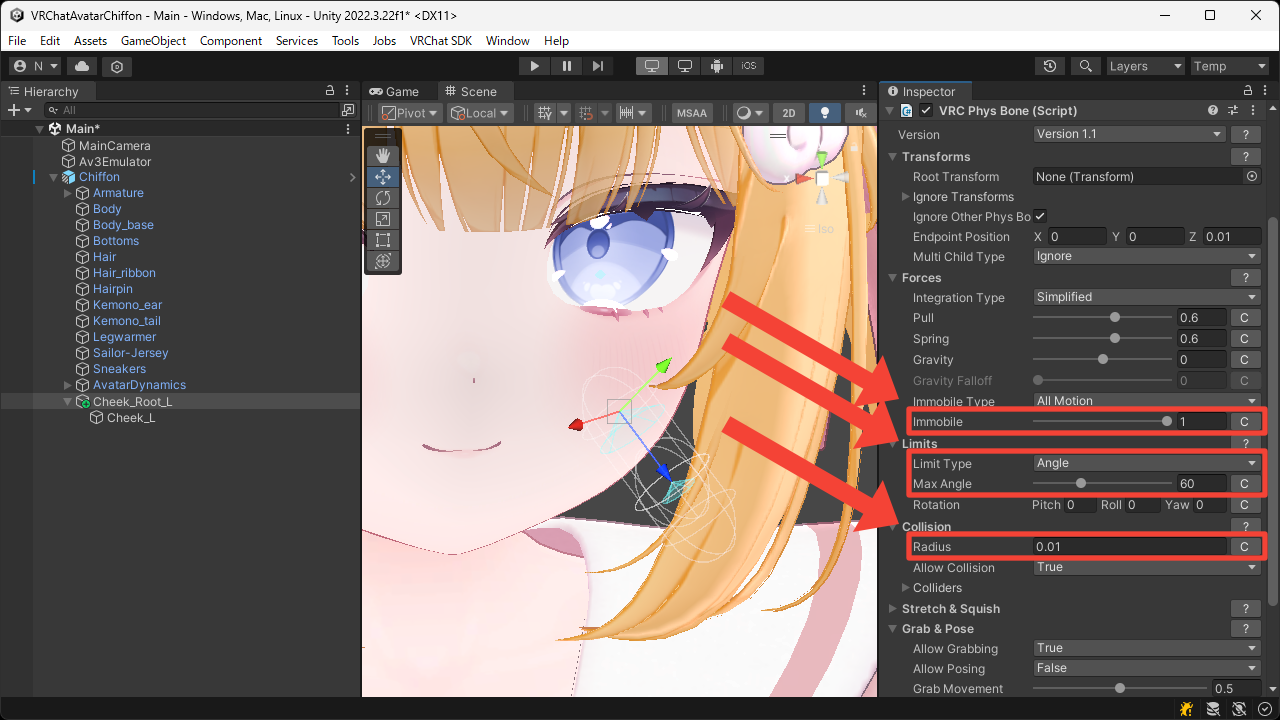
- Set an appropriate value for the
Collision > Radiusso it can be touched by hand, and set theForces > Immobileto1so that the avatar's movement does not affect it.
Also, to prevent it from bending too much when touched, set theLimits > Limit TypetoAngleand set an appropriate value for theLimits > Max Angle.
You can later adjust settings such asForces > Pull,Forces > Spring, andTransforms > Endpoint Positionto achieve better movement.
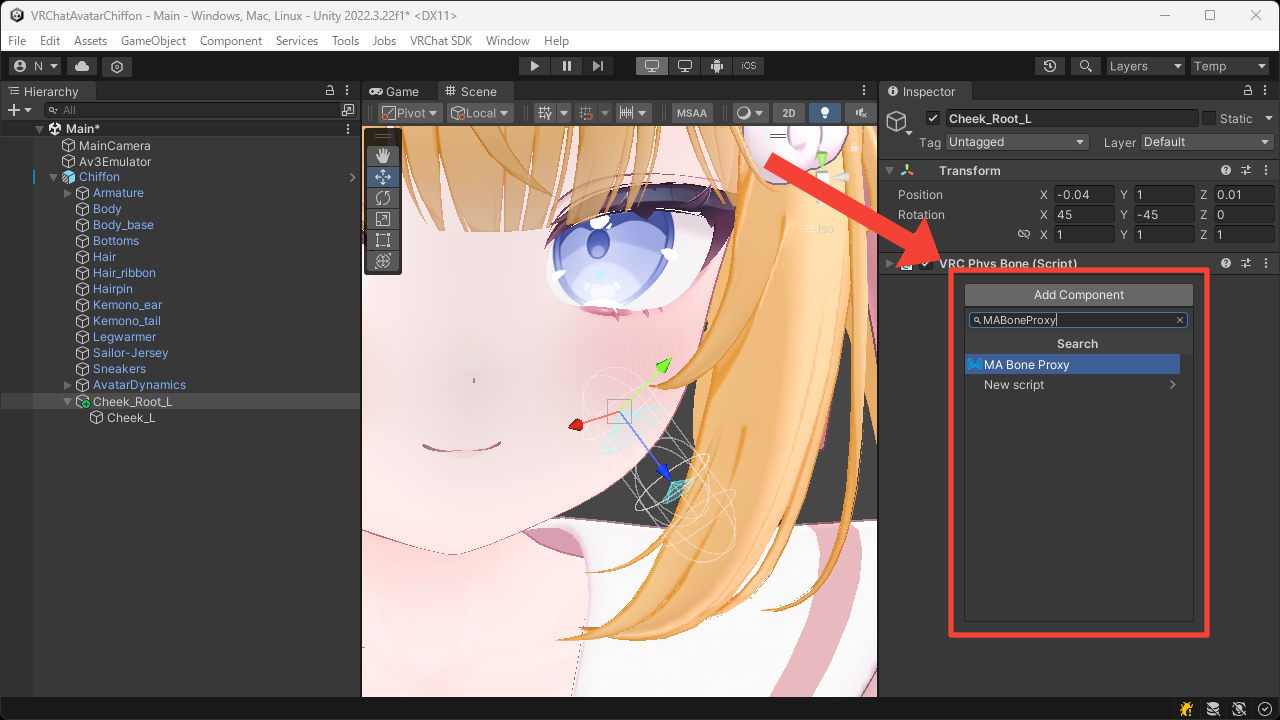
- Add the
MA Bone Proxycomponent to the parent Game Object.
- Set the
Targetto theHeadbone, and set theAttachment modetoAs child; keep position and rotationso that it moves under theHeadbone while preserving its transform.
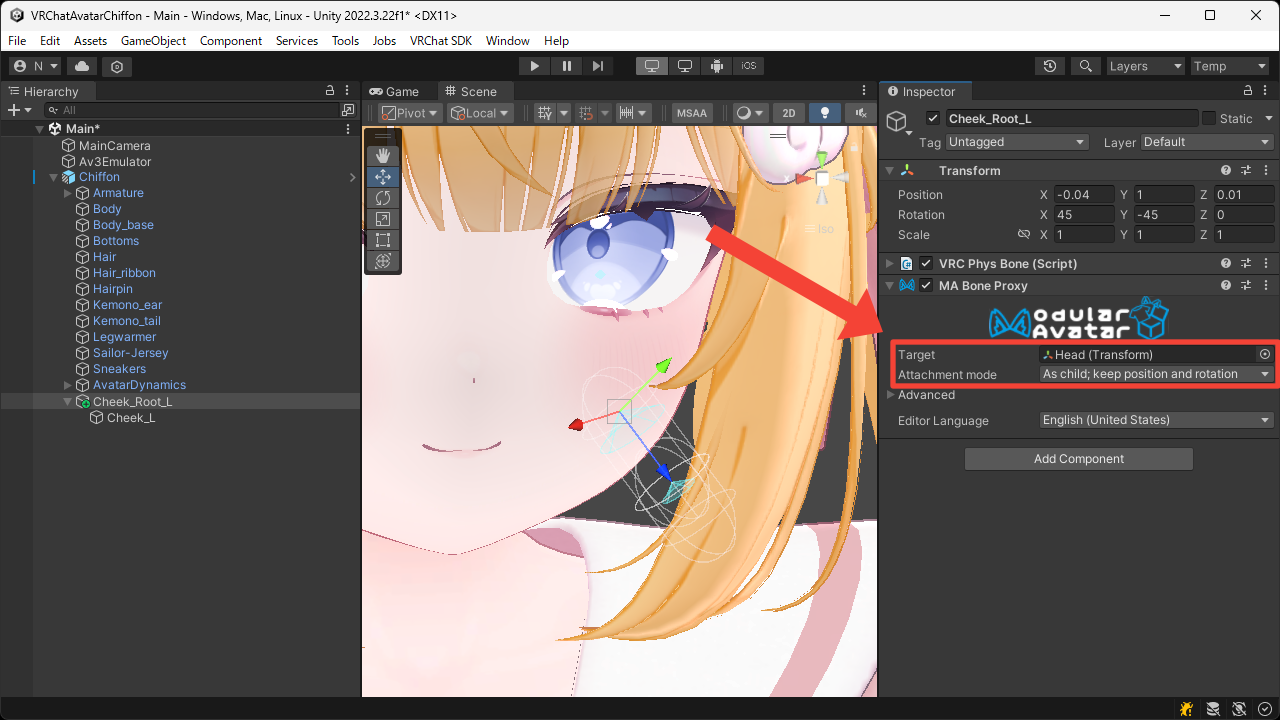
- Add the
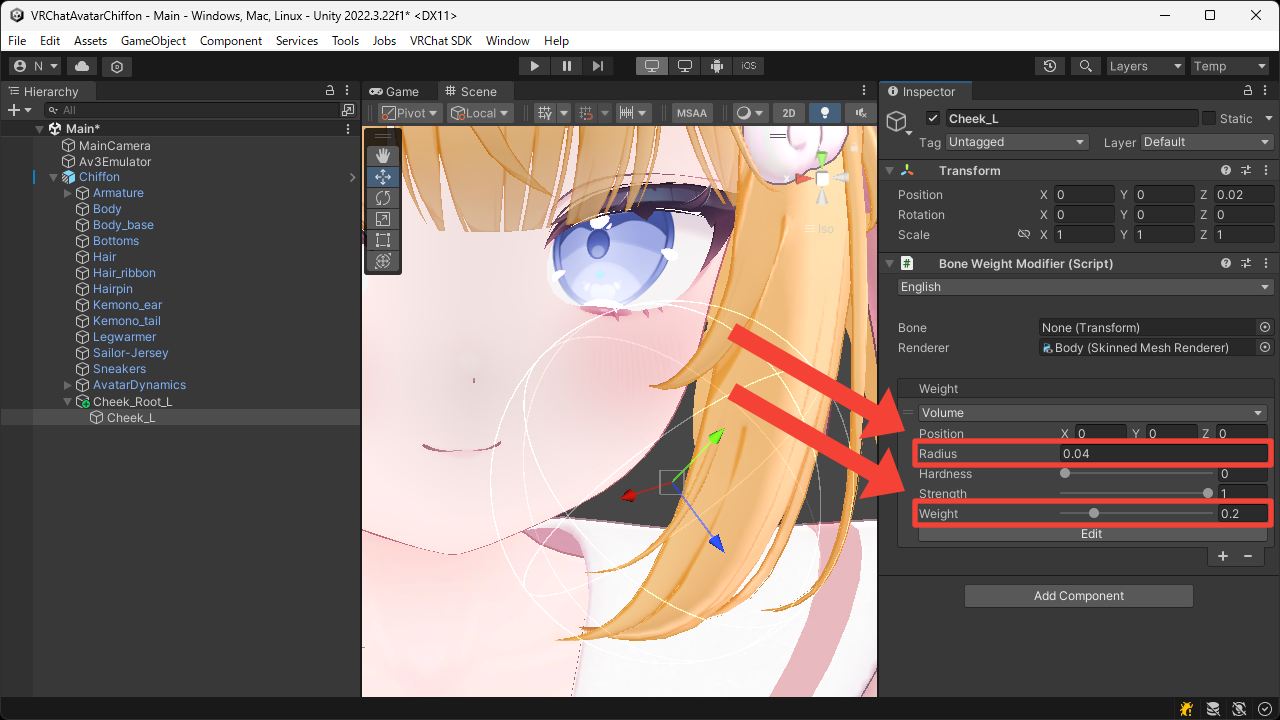
Bone Weight Modifiercomponent to the child Game Object.
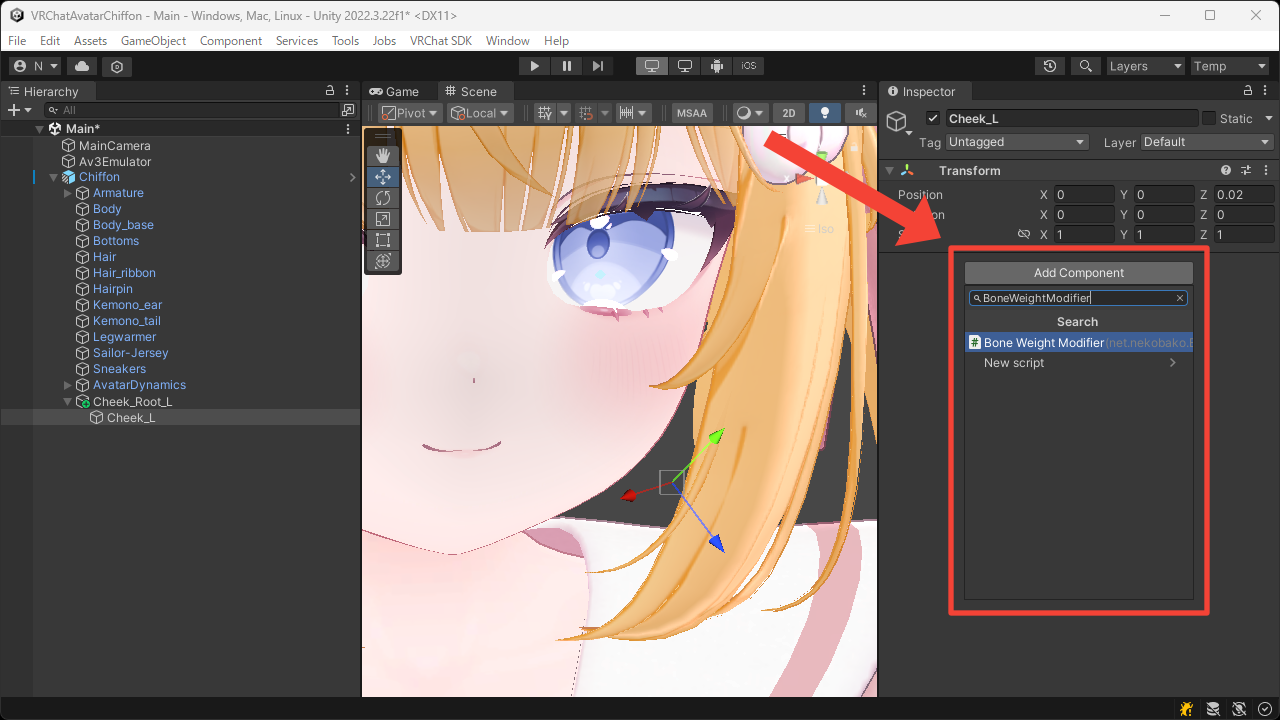
- Set the
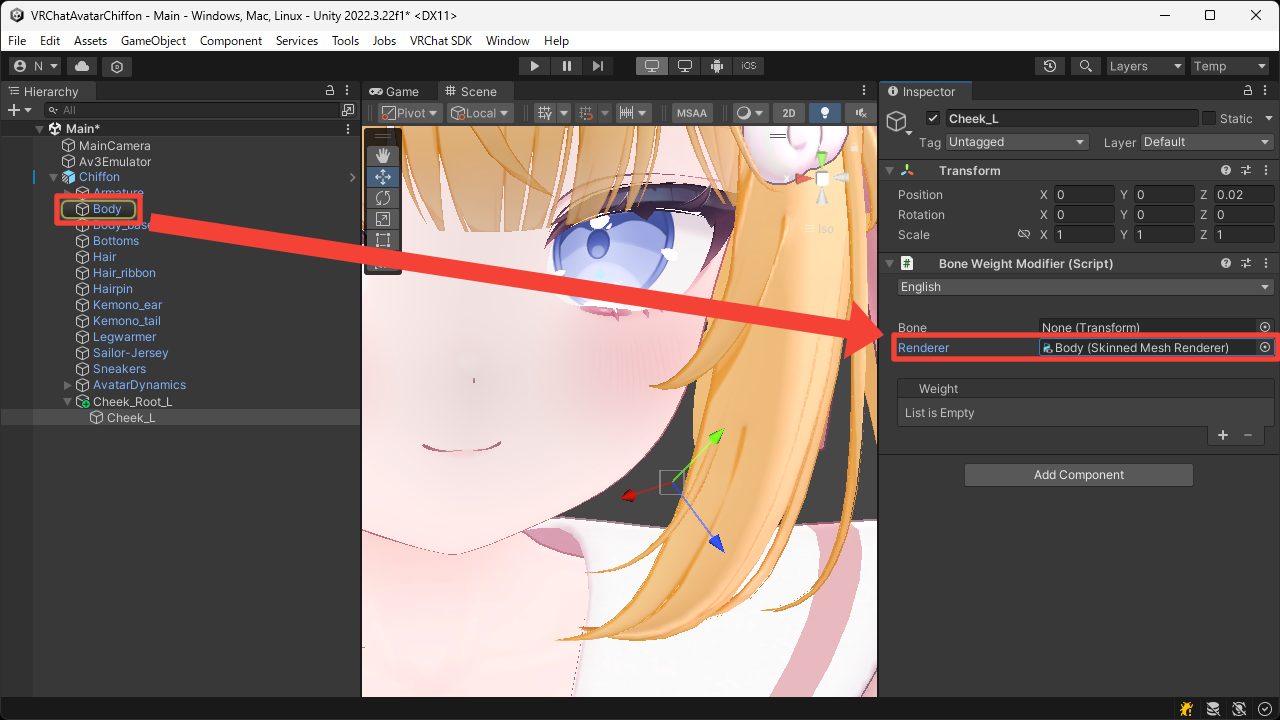
Rendererto the face'sSkinned Mesh Renderer.
In this case, leave theBoneunset to apply the weight for this Game Object.
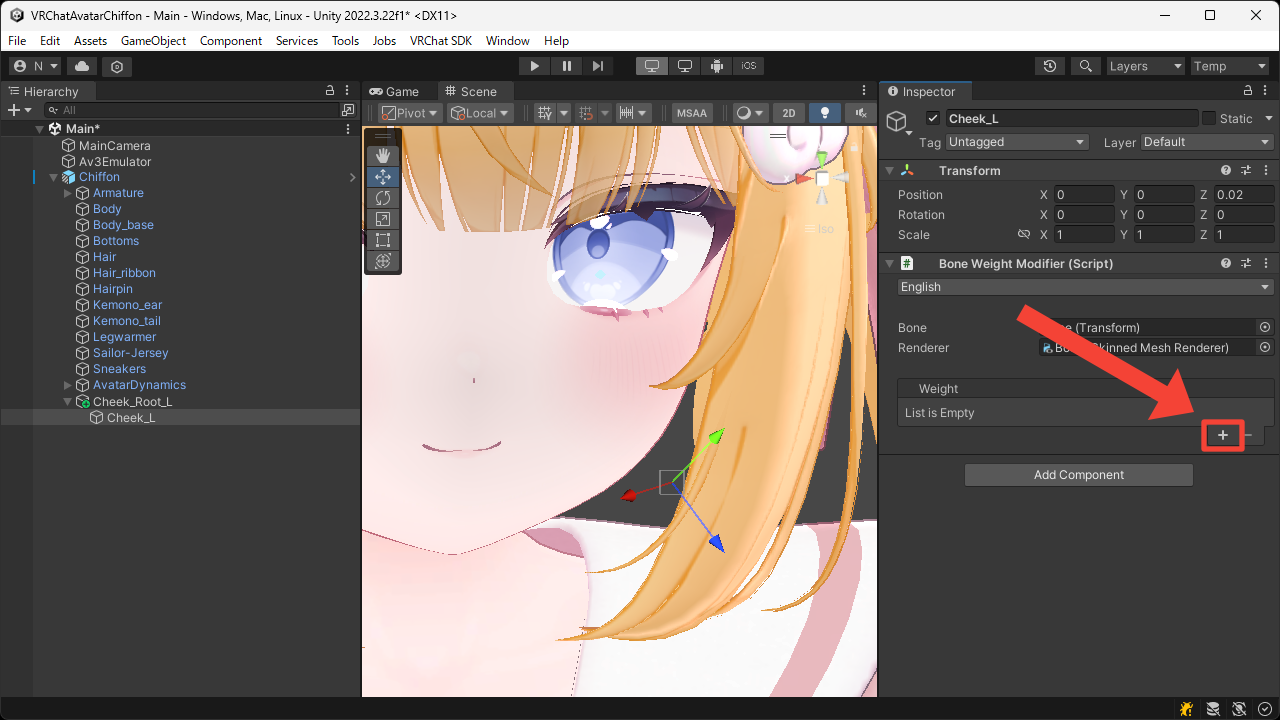
- Press the
+button to add theVolumeweight.
- Set the
Radiusso that it covers the area around one cheek.
Also, set a lowerWeightso that the bone's movement does not have too much influence.
- Duplicate the bones created in the steps above and place it on the opposite side.
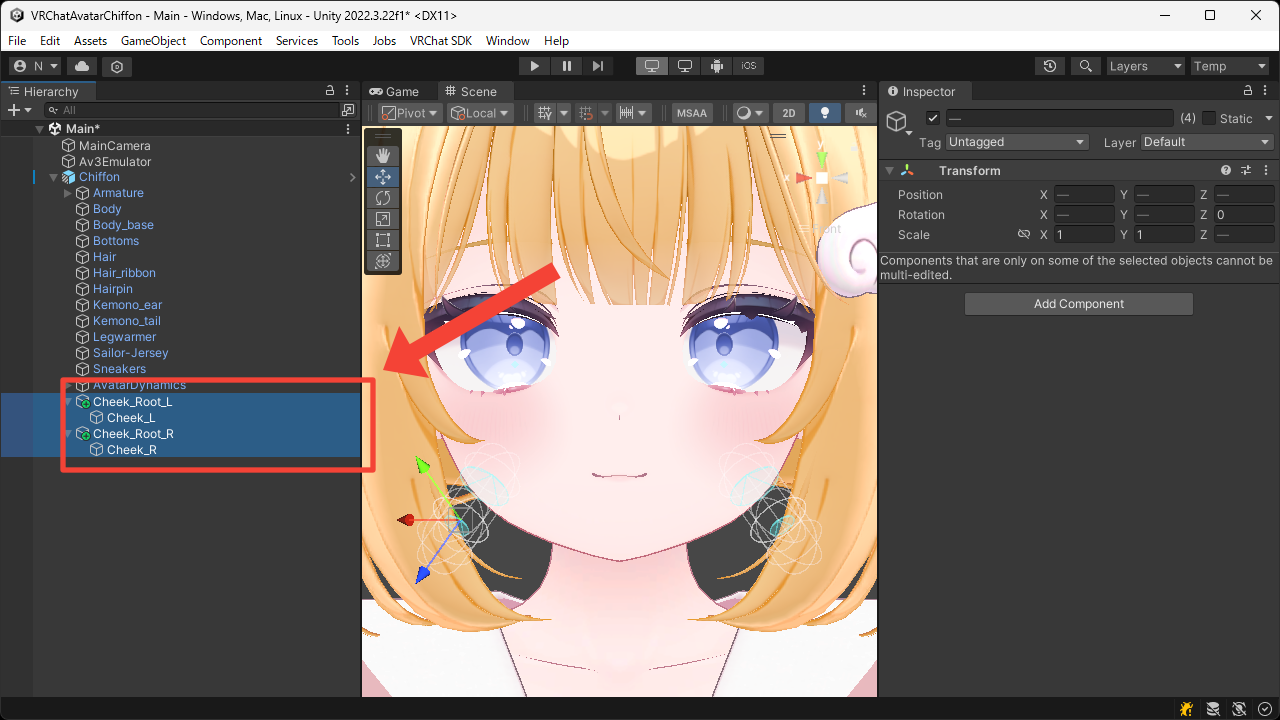
- Enter Play Mode to confirm that the cheeks behave in a soft, squishy way in the Game View.